
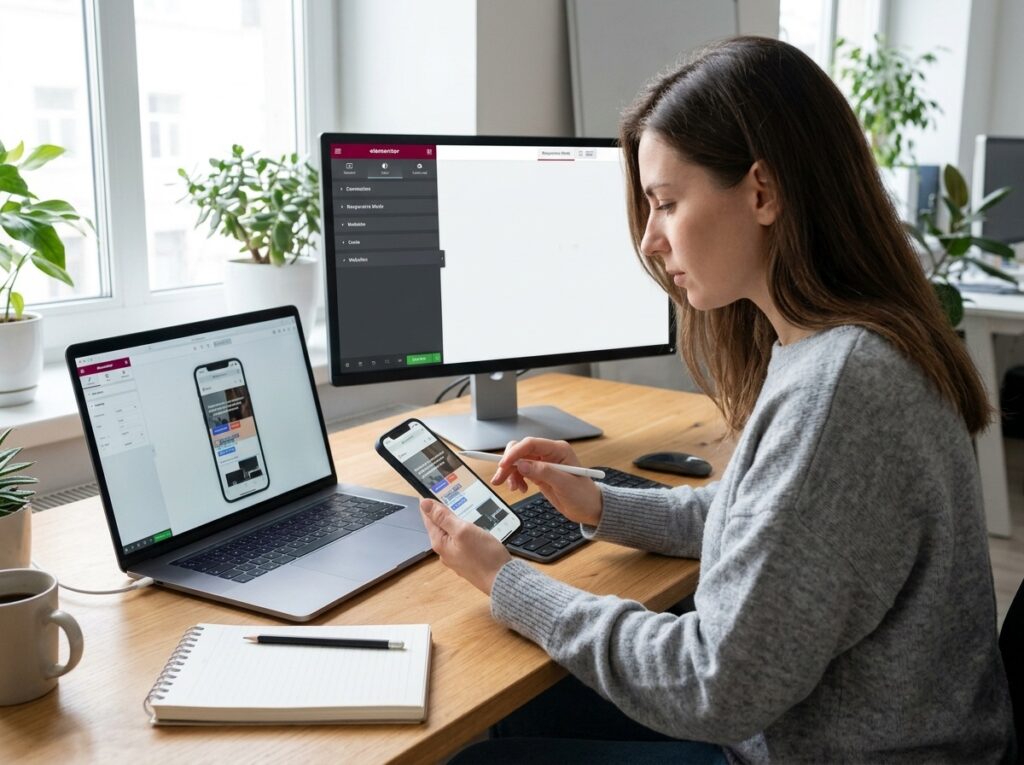
Why Elementor mobile responsive issues happen
Most mobile problems come from how Elementor handles device settings. Elementor uses a cascade: settings you apply on desktop carry down to tablet and mobile unless you override them. So a 120px padding set on desktop also applies on a phone, even though the screen is a fraction of the width.
Other common causes:
- Fixed pixel widths and heights
- Oversized fonts and images
- Old Section/Column layouts that don’t stack well
- Cached or outdated CSS
- Theme or plugin styles that conflict with Elementor
Step 1: Check every device mode in the editor
Click the responsive mode icon at the bottom of the Elementor panel (the screen icon) and switch between Desktop, Tablet, and Mobile. Fix mobile problems while you are in Mobile mode so your desktop design stays untouched.
Overrides made in Mobile mode only affect mobile. Overrides made in Desktop mode cascade down.
Tip: If your site uses additional breakpoints (such as Mobile Extra, Laptop, or Widescreen), go to Site Settings → Layout → Breakpoints to see which ones are active. Test each one.
Step 2: Fix columns that won’t stack
If your layout stays side by side on a phone, the container direction is the usual culprit.
- Flexbox Containers: Select the container, open Layout, and set Direction to Column for Mobile.
- Legacy Sections: Open the column settings and set the column width to 100% on Mobile.
- Use Reverse Columns on mobile if the image should appear above or below the text.
If you are still on the older Section/Column system, consider moving to Flexbox Containers. They give you far better control over mobile layouts.
Step 3: Reduce padding, margins, and spacing
Large desktop spacing is the number one reason mobile pages look cramped or broken.
- Select the section or container.
- Open the Advanced tab (or Layout for containers).
- Switch to Mobile mode and lower padding and margin values.
As a rule of thumb, cut large desktop padding to roughly 20–40px on mobile. Check for negative margins too, which often push content off-screen.
Step 4: Fix text size and overlapping text
Headings that look elegant at 64px on desktop will wrap awkwardly on a phone.
- Open Typography for the heading and switch to Mobile mode.
- Reduce font size and line height. For example, 64px can drop to 32–36px.
- Shorten letter spacing if text wraps unevenly.
For a more automatic approach, use fluid sizing with a custom CSS rule like font-size: clamp(1.75rem, 6vw, 4rem);.
Step 5: Fix images and backgrounds
Images can overflow or crop badly on small screens.
- Set image Width to 100% and Max Width to 100%.
- For background images, use a separate mobile image and set Position to the focal point you want visible.
- Avoid fixed heights on image containers. Use Min Height instead.
- Compress images and serve WebP so pages also load quickly on mobile data.
Step 6: Stop horizontal scrolling
A page that wiggles sideways is usually caused by one element wider than the screen. Common offenders:
- Elements set to a fixed pixel width larger than the viewport
- Full-width widgets with
100vwplus padding - Negative margins
- Wide tables or embedded content
To find the culprit, temporarily hide sections one at a time in Mobile mode until the scroll disappears. Then fix that element’s width. Adding overflow-x: hidden to the body can mask the issue, but fix the root cause first because that shortcut can break sticky headers.
Step 7: Fix the mobile menu and header
- Go to the Nav Menu widget → Responsive and choose the breakpoint at which the menu turns into a hamburger. Tablet is a safe default.
- Reduce logo size on mobile.
- If you use a sticky header, test it on a real phone. A tall sticky header can cover too much of a small screen.
Step 8: Use Hide on Device sparingly
Elementor lets you hide elements on Desktop, Tablet, or Mobile under Advanced → Responsive. It’s useful for removing decorative elements on phones, but don’t hide important content. Google uses mobile-first indexing, so what you hide on mobile may not count for SEO.
Step 9: Clear caches and regenerate CSS
Sometimes your fix is correct but you are looking at an old version.
- Go to Elementor → Tools → Regenerate CSS & Data.
- Clear your caching plugin and any server or CDN cache.
- Test in a private browser window.
If the issue appears only on the live site, a minification or CSS optimization plugin may be breaking your styles. Try disabling those options one at a time.
Step 10: Test on real devices
The editor preview is helpful, but it isn’t a real phone. Test on:
- An actual iPhone and Android phone
- Chrome DevTools device mode
- Google’s Mobile-Friendly checks in Search Console
Check both portrait and landscape, as well as a small screen (around 360px wide).
Quick troubleshooting checklist
| Problem | Likely fix |
|---|---|
| Columns stay side by side | Set container direction to Column on Mobile |
| Text overlaps | Reduce font size and line height on Mobile |
| Sideways scrolling | Find the element wider than the screen |
| Too much empty space | Lower padding and margins on Mobile |
| Changes not showing | Regenerate CSS and clear all caches |
| Menu looks broken | Adjust the Nav Menu breakpoint |
Frequently asked questions
Why does my Elementor page look fine in the editor but broken on my phone?
Usually it’s caching, a conflicting plugin or theme style, or minification. Regenerate Elementor’s CSS, clear all caches, and test again.
What are Elementor’s default breakpoints?
Mobile is up to 767px and Tablet is up to 1024px. You can change these, or enable extra breakpoints, in Site Settings.
Do mobile responsive issues hurt SEO?
Yes. Google primarily uses the mobile version of your site for indexing and ranking, and a poor mobile experience can raise bounce rates and hurt your rankings.
Should I use custom CSS to fix responsive issues?
Only when the built-in controls can’t do it. Elementor’s responsive settings solve most problems and are easier to maintain.
Key takeaways
- Desktop settings cascade down to mobile, so override them in Mobile mode.
- Most issues come from column direction, oversized padding, large fonts, and fixed widths.
- Fix horizontal scrolling by finding the element that is too wide, not by hiding overflow.
- Always regenerate CSS, clear caches, and test on a real phone.
If your site keeps breaking on mobile, it may be time for a deeper fix. Read our guide on the 7 signs your business website needs a redesign, or see how we approach professional WordPress website development.
Still struggling with Elementor mobile responsive issues? Talk to Srivex Studio and we’ll make your site look great on every screen. Contact us